Counting…
Drop the photo to load it
Outline one car in a drone, aerial or rooftop photo of a parking lot, and every parked car is counted, whatever its colour: for occupancy counts, events and site studies.
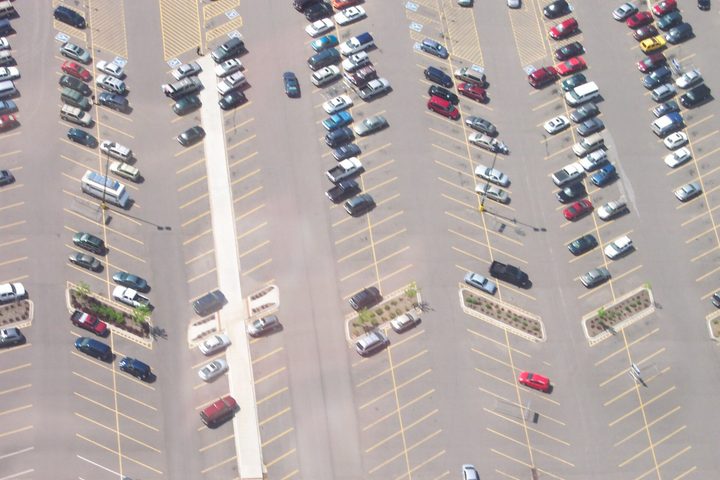
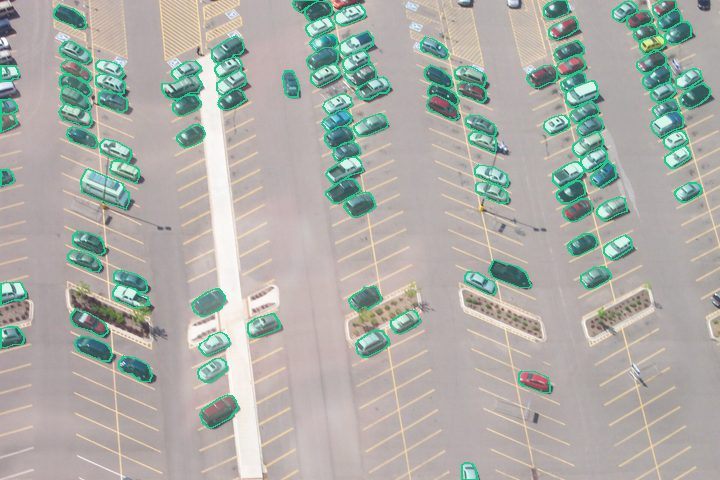
The example opens with its outline and settings, so you can see how it was counted and change them. Then try your own photo: it starts with the same settings.
Parking occupancy counts, traffic and site studies, event and lot management, and checking a dealer or rental lot.
Move across a photo to see what was counted. See all of them

 Count logs72 logs

 Count pills47 pills, 3 kinds

 Count pipes92 pipes

 Count colonies435 colonies
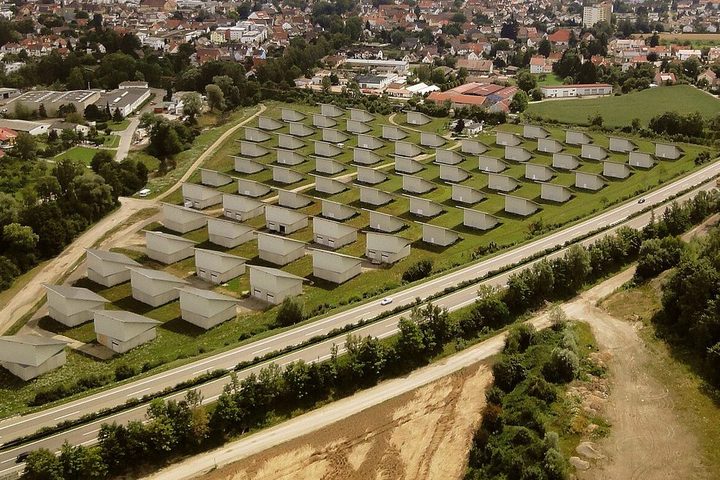
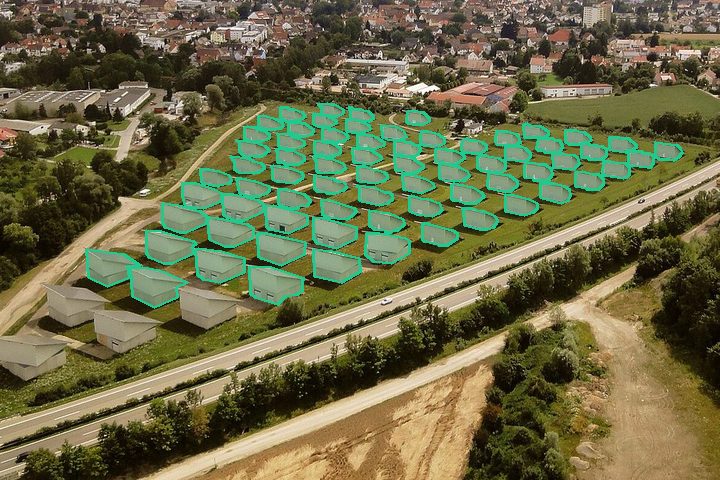 Count solar panels70 panels
Count boxes and palletsTry your own photo
Counting many photos, or something this page finds hard? We build custom models for your kind of image, run batch counts and offer an API, as a monthly plan.
Ask for a quoteYour photo stays in this browser unless you choose Smart AI in step 4. Pricing · Privacy · Terms · Business information · Feedback and contact