How to use Photo Counter
Tutorial · last updated 11 November 2026
You show Photo Counter one object, and it finds the others like it. A count takes four steps and about a minute. Every counted object gets a number on the photo, and you can correct the count by hand.
1Choose a photo
On the home page, click the kind of object you want to count: cars, logs, pipes, pills and so on. Each kind has its own page with an example you can open, and it starts your own photo with settings that suit that kind. Then press Count your own photo, or drop or paste a photo on the page.
Counting something that isn't in the list? Use Count any other type on the home page, type what you count, and choose a photo.
A good photo makes a good count:
- Take it straight on, with even light and no strong shadows.
- The objects should look alike and not overlap much.
- JPG, PNG, WebP, AVIF, GIF and BMP files work. TIFF, RAW, PDF and videos don't; save a HEIC file copied from an iPhone as JPG first.
- Large photos are reduced to 2400 pixels on the long side, so crop a huge photo of very small objects first.
Your photo stays in your browser. It is sent to our server only if you choose Smart AI in step 4.
2Choose where to count
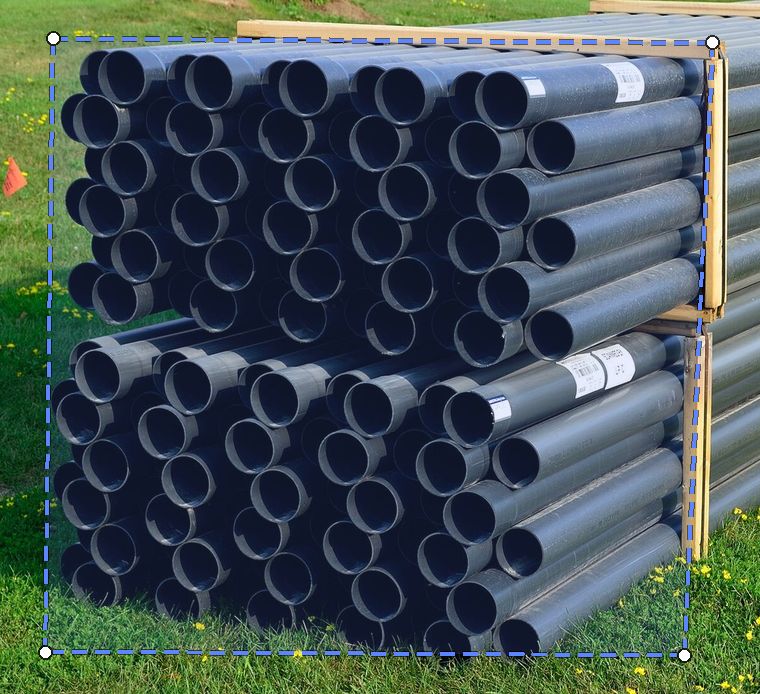
If the photo shows more than you want to count, outline the part to count: one stack, one shelf, one dish. Objects outside the outline are not counted.
- Click on the photo to place corners around the area.
- Click the first corner again, or press Enter, to close the outline.
- Backspace removes the last corner. Drag a white handle to move a corner.
To count everything in the photo, skip this: press Count the whole photo.
3Outline one object
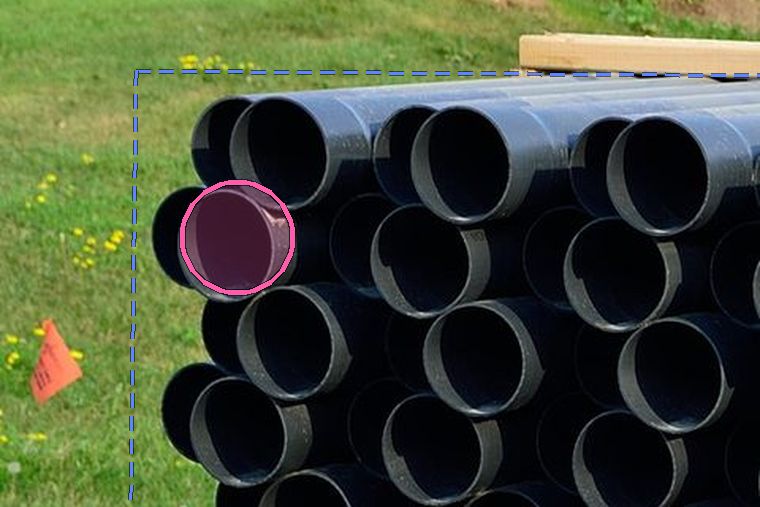
Click inside one object you want counted. Its edge is found for you, and everything that looks like it is counted.
- Choose a typical object that is fully visible.
- If the found edge is wrong, drag its white corners, or switch to Draw corners and place the corners yourself.
- Objects of different kinds (white pills and yellow pills): outline up to three examples, one of each kind. Each kind gets its own count.
- One kind in different sizes (logs, pipes): outline one medium object, then widen Size in step 4.
Then press Next: check the count.
4Check and correct the count
The total shows in large digits, and every counted object is outlined in green and numbered on the photo. Zoom in to read the numbers on small objects (the + and − buttons or the mouse wheel; drag to move the photo; Fit shows it all again).
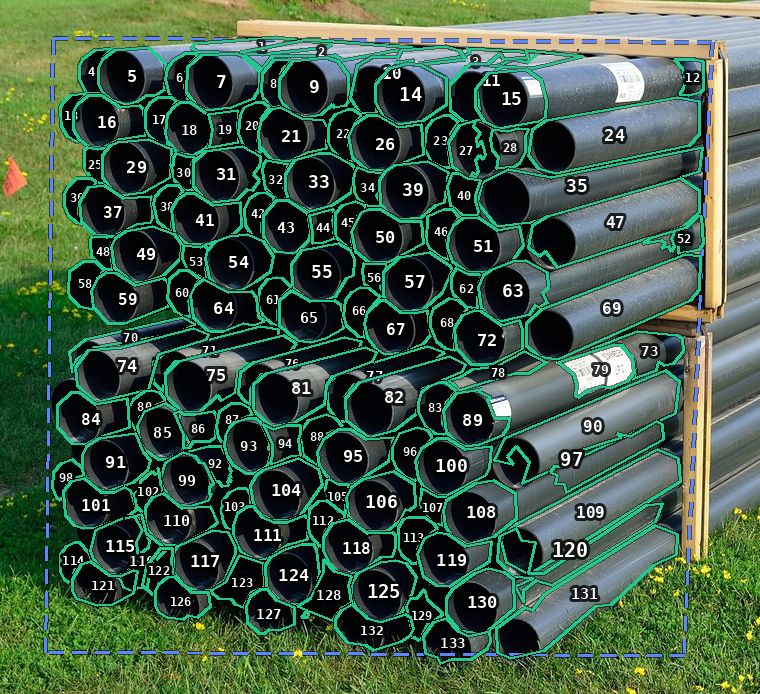
Correct it by hand. No count of a real photo is perfect, so this step is yours:
- A missed object: click it. It is added, outlined in blue , and the total goes up by one.
- A wrong mark: click it. It is removed and shown as a red cross. Click the cross to bring it back.
- With Removing a mark also removes look-alikes on, marks that look like the one you remove go too: one click can clear a row of the same mistake. Turn it off to remove marks one at a time.
- Undo fixes returns to the count as it was found.
The list under the total keeps track: found automatically, added by you, removed by you. You can try adding and removing marks on the picture at the top of the home page.
Settings, when many marks are wrong
If a few marks are wrong, correct them by hand. If many are, change a setting; the count updates as you move it.
| Setting | What it does | Change it when |
|---|---|---|
| Size | How much bigger or smaller than your example an object may be. | Small or large objects are missed: widen it. The slider can go up to ±200%. |
| Shape match | How closely an object must match the example, from Loose to Strict. | Too many wrong marks: move towards Strict. Objects are missed: move towards Loose. |
| Rotation | Same direction, or any direction. | The objects lie every which way (screws, pills): choose Any direction. |
| Color | Ignore, Similar or Close. | Objects of another colour are counted: choose Close. Colours vary: choose Ignore. |
You can also go back a step: a tighter count area or a better example often fixes more than a setting does.
Fast and free, or Smart AI
Nothing is uploaded and there is no limit. Best when the objects look alike and don't overlap much: pipe ends, pills on a sheet, parts on a table.
Best when the objects vary in colour, angle or shape, like cars in a parking lot or people in a crowd. It outlines each object's real shape.
Choose the mode under Settings in step 4. For Smart AI, the page shows what the count will cost before you press Run AI count; if the result isn't right, Not right? Get your credit back returns the credit. The example photos open with a saved Smart AI count, so you can compare the two modes without paying. Prices are on the pricing page.
Credits belong to an access key. Open Access key to copy it, or have it emailed to you, so you can use your credits on another device.
Keep the result
- Copy result copies the count as text, to paste into a message or a spreadsheet.
- Download image saves the photo with its marks and numbers, as a record you can check later.
Counts are estimates. Check the marks before you rely on a count for an order, an invoice or a report.
If the count is off
- Marks on things that aren't objects: draw a count area around the objects, or move Shape match towards Strict.
- Many objects missed: move Shape match towards Loose, widen Size, and choose Any direction if they are turned.
- Touching objects counted as one: click the others to add them, or retake the photo with the objects apart.
- White objects on white, or strong shadows: retake the photo on a contrasting background with even light, or try Smart AI.
- Still not right? Write to us with what you count. We also count batches of photos and build models for hard cases.